MAKE YOUR HOME SAFE!
Keep an eye on your home, kids,
and pets with ease!
Get a Free Camera & 2 Bonus Months of Internet!
Pay 12M in advance



Make your home not only safe but also smart
Monitor the house, look after children, watch animals
Smart Video Surveillance From LiveSmart

Quick Setup

Remote Access Recording

Continuous Video Recording

Instant Notification

Secure Video Storage
One app for all your security needs
Stay connected to your home and your loved ones. Anytime, anywhere.

Live View
Be there when you’re not

Motion Detection & Notification
Get Notified about the things that matter

Two-way Audio
Chit-Chat on the go

Play Back, Continuous Recording
Never miss a beat, now or ever

Low-Light Filter
Crystal clear visuals, day and night
Our Product
Monitor the house, look after children, watch animals
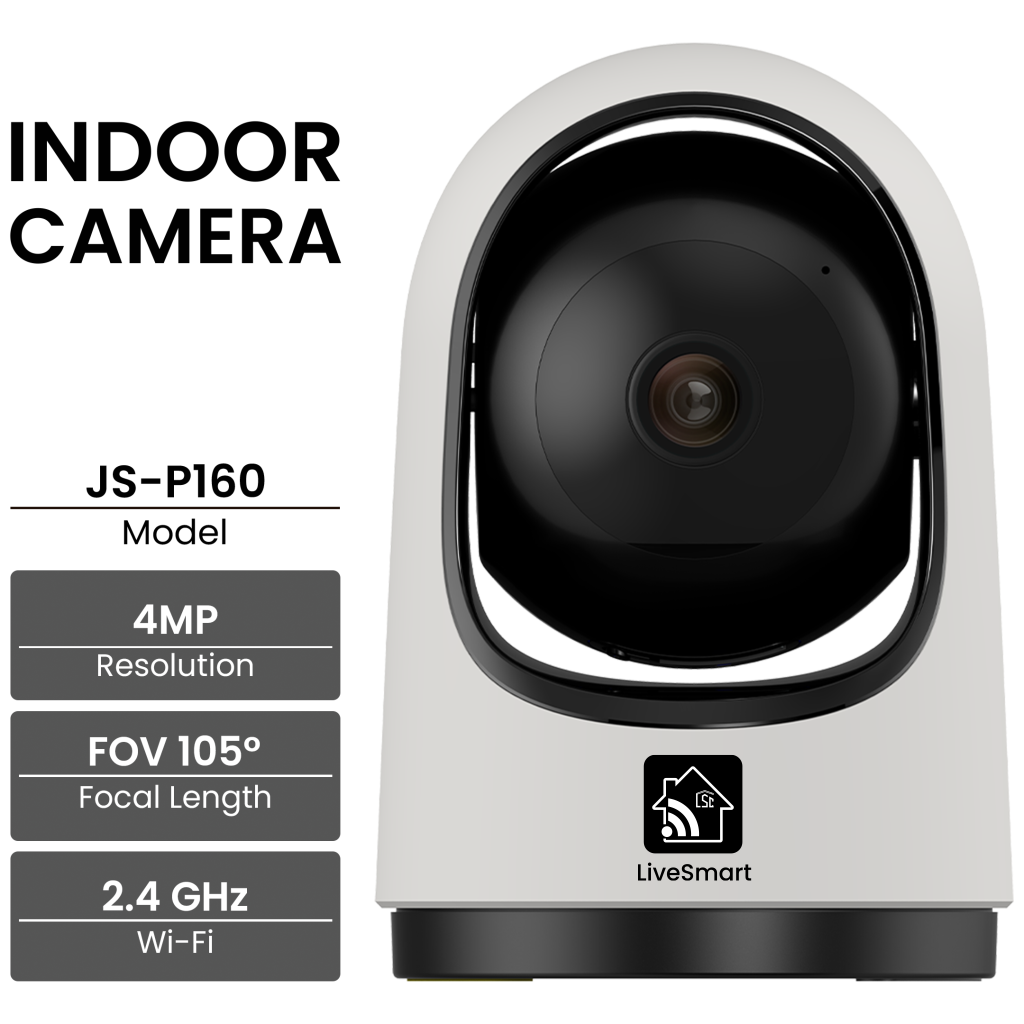
Features

Motion Detection & Auto Tracking

Multiple Local Playback Setting

Pan/Tilt Horiziontal 355, Vertical 180

Siren Alarm, ONVIF
Speification

850nm Infrared
Night Vision

Two Way Tak
Audio

-10 ~ 60C
Working Conditions

DC 5V/1A
Input

Micro SD Slot (support up to 128GB) Or Cloud Storage Option
Storage
Free internet & Security Camera with Mekongnet
Frequently Ask Question
- How do I set up my LiveSmart Camera?
To setup LiveSmart Camera, you can follow our steps:
- Step 1: download MekongNet LiveSmart App from Google Play or Apple App Store.
- Step 2: Register your account using your Email address, input OTP code, and setup account password.
- Step 3: Add LiveSmart Camera to your account.
- Step 4: Once you connected, you can view the camera’s live feed directly from your app.
- How to add device?
To add LiveSmart Camera to your account, you can follow our steps:
- Step 1: Create LiveSmart Account.
- Step 2: Click on “Add Device Button” or press on “+” in the upper right corner of the main screen. Make sure your devices power on and Wi-Fi is available and connected to the internet.
- Step 3: Choose “Camera & Lock”, Click “Smart Camera (Wi-Fi)” and click next.
- Step 4: QR Code will prompt on your screen and you need to scree it with the LiveSmart Camera (the camera is about 15-20 cm away from the mobile phone lens).
- Step 5: After you heard the prompt from your camera, click “I heard the prompt” and it will show “Connecting”.
- Step 6: Connection successful and click “Done”.
Now you can click directly to the device interface to see and monitoring situation without re-adding afterwards.
- Can I access the camera feed remotely?
Yes, you can access the live feed from your camera from any location, as long as your device is connected to Wi-Di and your phone has internet connection.
Use our MekongNet LiveSmart App to access the live feed or recorded footage.
- How to reset LiveSmart Camera?
To reset this camera, locate the reset button under the camera lens. Press and hold the button for 5 – 10 second until the camera reset and prompt you.
- Can I share with family and friend?
Yes, you can share your cameras with family and friends who will have access to view the camera and control your bulbs, plugs, and other devices. In the app, press the Profile button and click on the “Home Management” button, and you will be able to give or revoke sharing permissions. In order to share, the other user should already have downloaded the app and registered a new account.
- How many cameras can I control?
LiveSmart App can control an unlimited number of devices in an unlimited number of locations. Your router may have a limit of how many devices can be connected to one router.
- My device can’t connect to the network on the app.
- Make sure the device is under the config status (indicator light is flashing quickly) ·Make sure the Wi-Fi is available and not too far away from router
- Make sure the Wi-Fi password you input is correct
- My device shows offline on the App.
- Make sure the device is powered on · Make sure the network is stable and the Wi-Fi name and password have not been modified. If not, add device again.
- If the network is normal but it’s still offline, check if there are too many Wi-Fi connections. You can restart your router to check the status of the device.
- Is LiveSmart Camera weatherproof?
Yes, LiveSmart cameras are designed for both indoor and outdoor use. It is weatherproof and withstands the weather based on each camera specification.
In addition, please refer below table for each product specification:
|
Model |
Working Condition |
|
JS-P160 |
-10 ~ 60C |
- What is the wireless range?
The range of your home Wi-Fi is heavily dependent on your home router and the conditions of the room. Check with your router specifications for exact range data.
- Is the footage store in the cloud or locally?
LiveSmart Camera support both local storage by micro-SD Card and cloud storage. If you choose cloud storage, you will need to subscribe to the service through the app. If you choose local storage, you will need micro-SD Card installed in the camera.
- How to record video in the local storage “SD Card”?
To recode video in the local storage, you can follow our steps:
- Step 1: Install micro-SD Card to your device.
- Step 2: View the camera you just installed micro-SD Card, click on the “…” in the upper right corner screen.
- Step 3: Click on “Storage Settings”, click on “Format” and wait unit this process done.
- Step 4: Go back and click on “Recording Setting”, and turn on “Local Recording”
- What is the storage support for local storage?
LiveSmart Cameras support storage are based on each product specification.In addition, please refer below table for each product specification:
|
Model |
Support storage |
|
JS-P160 |
Up to 128GB |
- What is the difference between Non-Stop record mode and Event record mode.
- Non-Stop record mode: allow your camera records continuously 24/7. This is ideal for user who want constant monitoring and want to ensure no event are missed. It will user more storage space, so it’s recommended to use larger micro-SD Card.
- Event record mode: allow your camera records when it detects motion or specific event. This helps you save storage space and makes it easier to review key moments, due to it filters out time when nothing happened.
- How do I switch between Non-Stop record mode and Event record mode?
To switch between Non-stop mode and Event record mode, you can follow our steps:For local storage (Micro-SD Card):
- Step 1: View any camera you want to change mode.
- Step 2: Click on the “…” in the upper right corner screen.
- Step 3: Click on “Record Setting” and turn on “Local Recording”
- Step 4: Click on “Record Mode” and choose any mode you require (Event Recording or Non-Stop).
For Cloud Storage:
-
Step 1: View any camera you want to change mode.
- Step 2: Click on “Cloud” below the corner screen and click on “Purchase Cloud”
- Step 3: Choose the package you want (Event record mode or Non-Stop record Mode).
- What is Scene?
LiveSmart Scene predefined in the app associates multiple LiveSmart devices to allow you to start or stop these devices simultaneously with one instruction.
For example, you can create a scene named “Private mode” to turn on private note in the period of time. - How can I create Scene?
To create scene in LiveSmart App, you can follow our steps:
- Step 1: Click on Scene in the bottom center corner of the main screen and click “+” in the right upper corner screen.
- Step 2: Select any instruction you want to use for condition:
- When Weather changes: select one condition and select “Current City”
- Schedule: select execution time and repeat status.
- When device status change: select device, function, and condition.
- Step 3: Add task by click “+” button at the then task and select task you want your camera to do:
- Control Single Device: select device and functions you want your device to do.
- Select smart scenes: select smart scene.
- Send notification: select message Center.
- Delay the action: setup delay action duration
- Step 4: Click on “Save” and enter scene name.